


Smartphone Ticket All the information at a glance.

What is the Smartphone Ticket, and how does it work?
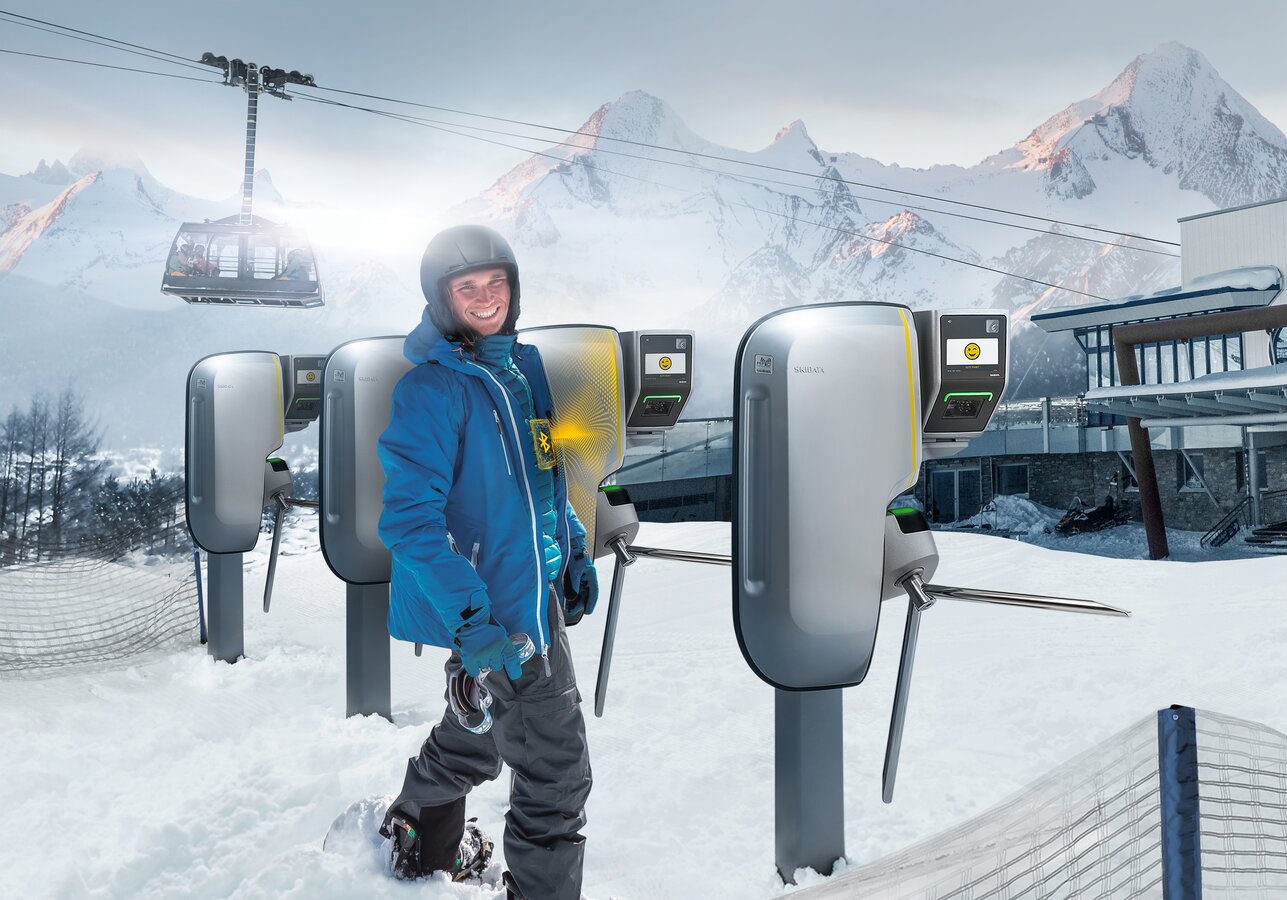
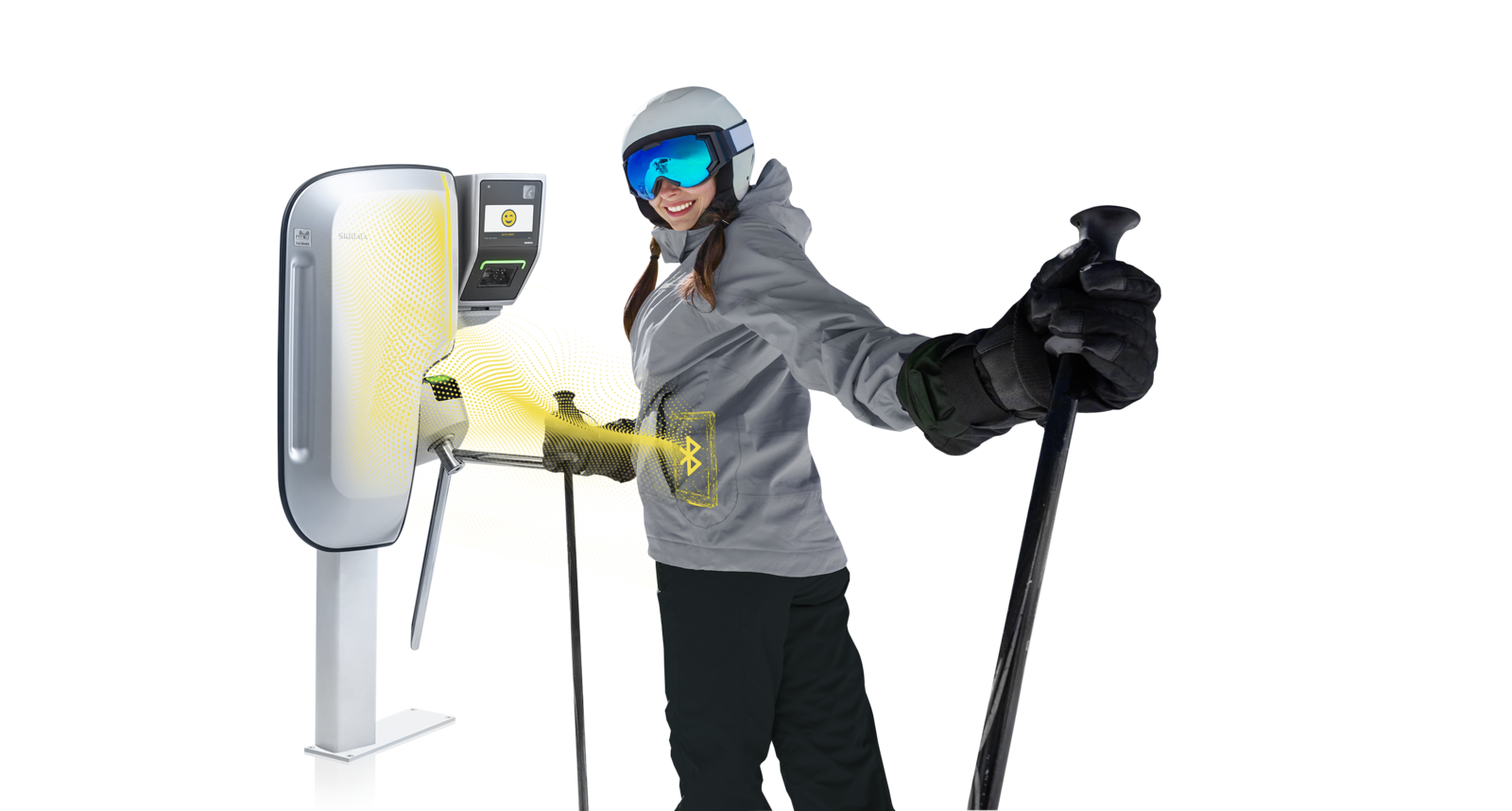
The smartphone ticket is an alternative to the traditional KeyCard and gives you convenient access to the ski slopes. You’ll need a compatible smartphone and the free “key2ski” app. After purchasing your ticket in the online ticket shop, load it into the “key2ski” app and activate it there. Your smartphone will then communicate with the access reader via Bluetooth, causing the turnstile to open automatically.
✓ “key2ski” app in the Google Play Store or in the Apple App Store Download
✓ Buy a ticket in the online ticket shop
✓ Load and activate your ticket in the "key2ski" app
✓ Insert your smartphone, walk through the turnstile, and hit the slopes
Please note that the smartphone ticket is currently only available in the online ticket shop and not at the on-site ticket office.
Requirement: Smartphone Ticket.
To use a smartphone ticket, you'll need:
✓ a compatible smartphone, the free "key2ski" app, and
✓ a valid ticket.
✓ iPhone: iPhone 6s or later, iOS 13 or later
✓ Android: Version 8 or later, screen width of at least 720px
✓ Apple Watch: Apple Watch 6 or later, watchOS 11
✓ iPhone 6 and earlier
✓ Brands: Huawei, OnePlus, Oppo, Honor
✓ Also some models from: Xiaomi, Redmi, Poco, Samsung S8/S9
App Download & Installation
You can find the app in the Google Play Store or the Apple App Store under “key2ski.” It’s available for free download.
If your smartphone doesn't meet the system requirements, the "key2ski" app won't appear in the store.
You should install the app before purchasing it to make sure it's available on your smartphone and compatible with it.
Install the app, follow the setup steps, and grant the necessary permissions.
To use your smartphone ticket at the turnstile, Bluetooth and location services (GPS) must be enabled. You’ll also need to manually activate the ticket in the app.
On Android smartphones, you must also disable battery optimization so that the app can continue running in the background and isn’t stopped by the operating system.
Check to see if there is enough storage space on your smartphone, and then try again.
Buy & Manage Tickets
You can purchase a smartphone ticket exclusively through the Ski amadé online ticket shop or through the online ticket shops of the mountain railways.
The Ski amadé ALL-IN Card White/Gold, multi-day passes, and select one-day ski passes are available as smartphone tickets. In the online ticket shop, during the “Personalization” step when selecting your purchase method, you can see whether your desired ticket is available as a smartphone ticket.
After your purchase, you'll receive a confirmation email with all the information about your ticket.
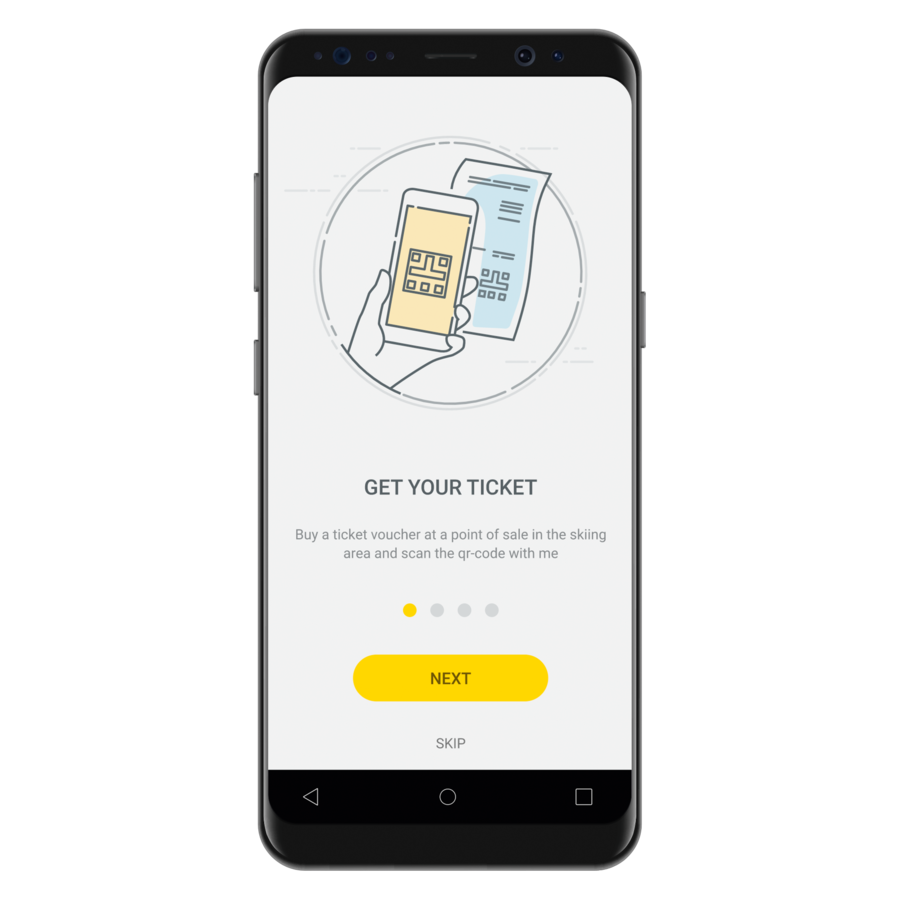
Then, load your smartphone ticket into the app by either opening the download link or scanning the QR code.
The smartphone ticket can only be downloaded to the app once and is non-transferable.
Each person needs their own smartphone to use a smartphone ticket.
No. Once the smartphone ticket has been loaded into the app, it cannot be transferred to another smartphone.
Yes, that's possible. However, each person needs their own smartphone with their own ticket in the "key2ski" app. For each ticket, you'll receive a unique QR code or download link. This must be redeemed on a separate smartphone, as only one ticket can be activated per device.
Yes, you can easily load multiple tickets—exclusively for yourself—with different validity periods into the “key2ski” app.
How to Use a Smartphone Ticket Correctly
Once you've granted the necessary permissions (Bluetooth and location/GPS), you can activate your smartphone ticket in the app by tapping the "Activate" or "Use Ticket" button.
Yes, once your smartphone ticket is activated in the app, you can use it right away.
Carry your smartphone on your left side at chest level (e.g., in your jacket pocket) to ensure optimal communication with the reader.
A pants pocket is not suitable, as the reader is located higher up.
Make sure your smartphone isn’t blocked by items such as a wallet or metal objects.
If the ticket isn’t being read, turn your upper body slightly toward the reader.
Yes, the app must remain open in the background for your smartphone ticket to remain active.
If you close the app completely, the ticket will also be deactivated. In that case, you'll need to reopen the app and reactivate the ticket.
No, the “key2ski” app does not collect any personal or location-based user data.
No, you only need an internet connection to download the smartphone ticket once. After that, you can use the app offline.
No, when you make your purchase, you must choose a ticket type (Smartphone Ticket or KeyCard).
Since both types of tickets can be scanned at the same time, you should not carry a KeyCard with you, as this may cause problems when entering.
Problems & Solutions
There could be several reasons for this:
- No internet connection
- Incorrect or invalid QR code
- The download has already been used
Possible error messages include:
- “Invalid QR code” – incorrect code or scanning issue
- “You are offline” – no internet connection available
- “Download limit reached” – the one-time download has already been used
Make sure your smartphone is connected to the internet and that you’re using the correct QR code.
Buy a smartphone ticket from the online ticket shop and then load it into the app.
To do this, scan the QR code from your purchase confirmation or open the download link to load the ticket onto your smartphone.
No, this feature is not currently available. The smartphone ticket cannot be transferred to another device.
Before you can use your ticket, you’ll need to manually activate it again after downloading it to the app. To do this, simply tap “Activate” in the app—only then will the ticket be ready for use, and the app will recognize which smartphone ticket you want to use.
App updates provide new features, improved compatibility, and make it easier to use the smartphone ticket.
Access & Conduct at the Turnstile
Keep the following points in mind:
✓ Carry your smartphone on your left side
✓ Do not block it (e.g., with cards or metal)
✓ Move closer to the turnstile
Also, make sure you don’t have a KeyCard on you—not even an old or invalid one. The turnstile may detect it first and prevent you from entering.
The behavior may vary depending on the smartphone and is due to technical reasons.
Please contact the staff on site. With your purchase receipt, you can get a replacement KeyCard at any on-site ticket window.
You will receive either a free single-use card or a reusable KeyCard, for which a deposit is required.
It is recommended that you do not keep any other cards near your smartphone when using the smartphone ticket.
Otherwise, similar to KeyCards, problems may occur when the ticket is scanned at the turnstile.
Battery & Loss
Charging stations for smartphones are available at the lift ticket counters. Power banks can also be purchased at some sports stores.
With your email booking confirmation, your smartphone ticket can also be transferred to a KeyCard at a ticket counter on-site.
With your booking confirmation, your smartphone ticket can be transferred to a new KeyCard at a ticket window on site. Please note that additional fees may apply (KeyCard deposit).
Newer smartphones (up to about two years old) use about 10–20% of their battery capacity per day.
Battery usage may vary depending on the device. If your battery life is low, it’s a good idea to bring a power bank.
No, mobile data is not required. The app only needs an internet connection for the one-time download of the smartphone ticket. After that, the ticket works offline, even in airplane mode. Communication with the access system takes place via Bluetooth.
Skiline
Yes, you'll find the authorization number on your booking confirmation; you'll need to enter it in your Skiline profile.